Tasks overview
Tasks is the to-do layer of your workspace. A task can be something you typed in five seconds, or it can be born from a mail thread or a chat message and carry a link back to where it came from — so when you sit down to do the work, the context is one click away.
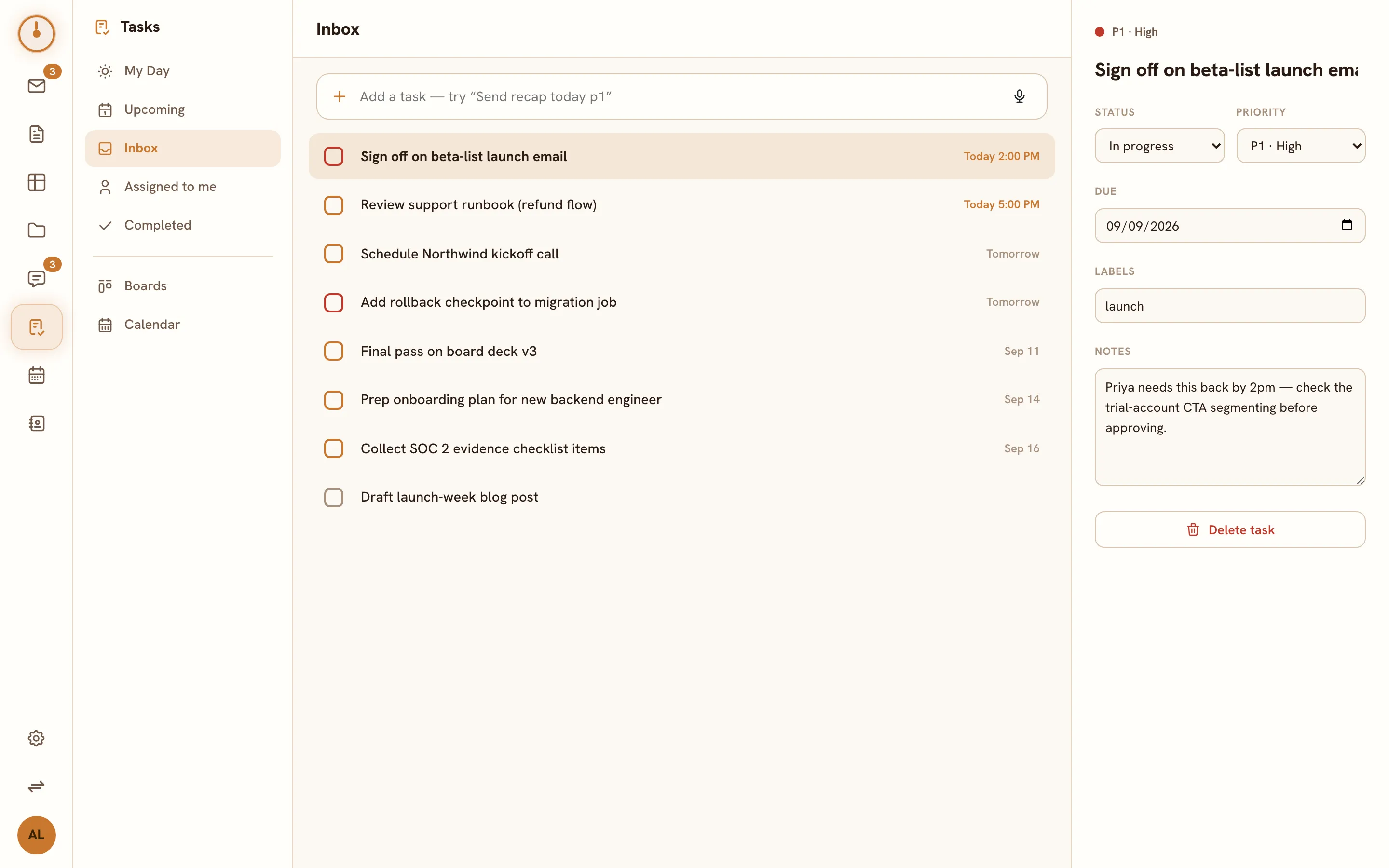
The Tasks app
Section titled “The Tasks app”Open Tasks from the app rail. The page has three panes:
- Views on the left — switch between My Day, Upcoming, Inbox, Assigned to me, and Completed.
- The task list in the middle, with a quick-add box at the top for capturing new tasks.
- The detail panel on the right — click any task to edit its title, status, priority, due date, labels, and notes there.
The views at a glance
Section titled “The views at a glance”| View | What it shows |
|---|---|
| My Day | Everything dated today — plus anything overdue, so nothing slips past quietly |
| Upcoming | Every active task that has a due date, soonest first |
| Inbox | Every active task, dated or not — the catch-all, and the default view |
| Assigned to me | Active tasks where you’re an assignee |
| Completed | Tasks you’ve finished (or canceled), your done list |
Anatomy of a task
Section titled “Anatomy of a task”Every task has a title and a status (To do, In progress, and so on). Beyond that, everything is optional:
- A priority — P1 High, P2 Medium, or P3 Low — which colors the task’s checkbox ring so urgency is visible at a glance.
- A due date, shown as a compact chip in the list: Today with a time, Tomorrow, a date, or a red Overdue.
- Labels — freeform tags for grouping related work.
- Notes — longer context that doesn’t belong in the title.
- A source link — if the task was created from a mail thread or chat message, a source card points back to it. See Tasks from anywhere.
Tasks belong to the workspace you’re in, like everything else in Knobs — switch workspaces and you switch task lists. See Workspaces.
Where next
Section titled “Where next”- Capturing tasks — quick add, shorthand, dictation, and creating tasks from Mail and Chat.
- Organizing tasks — working the views, priorities, due dates, labels, and completing tasks.
- Tasks from anywhere — source links, the calendar overlay, and tasks in Search.
- Building on the API instead? See the Tasks API reference.