Calendar overview
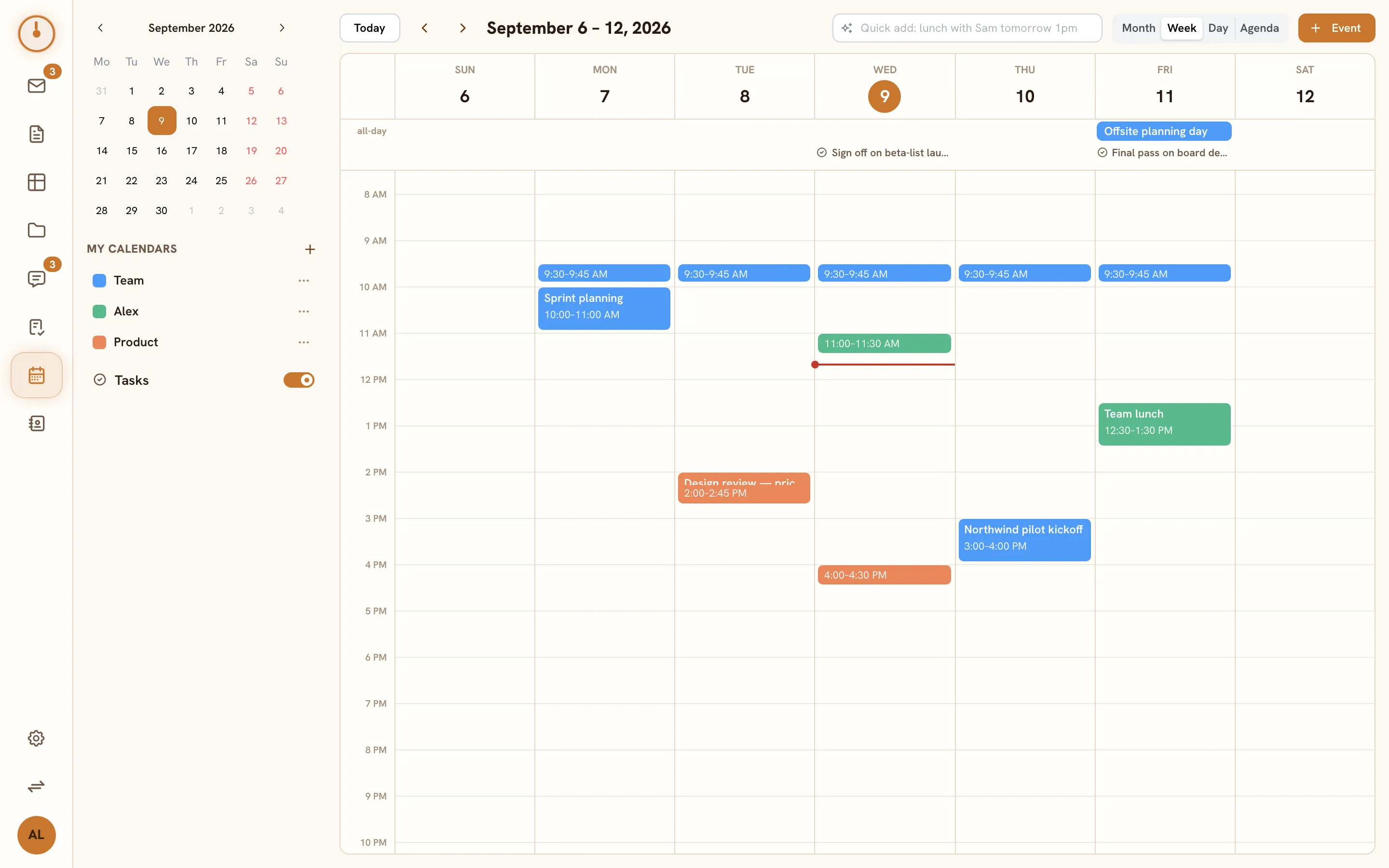
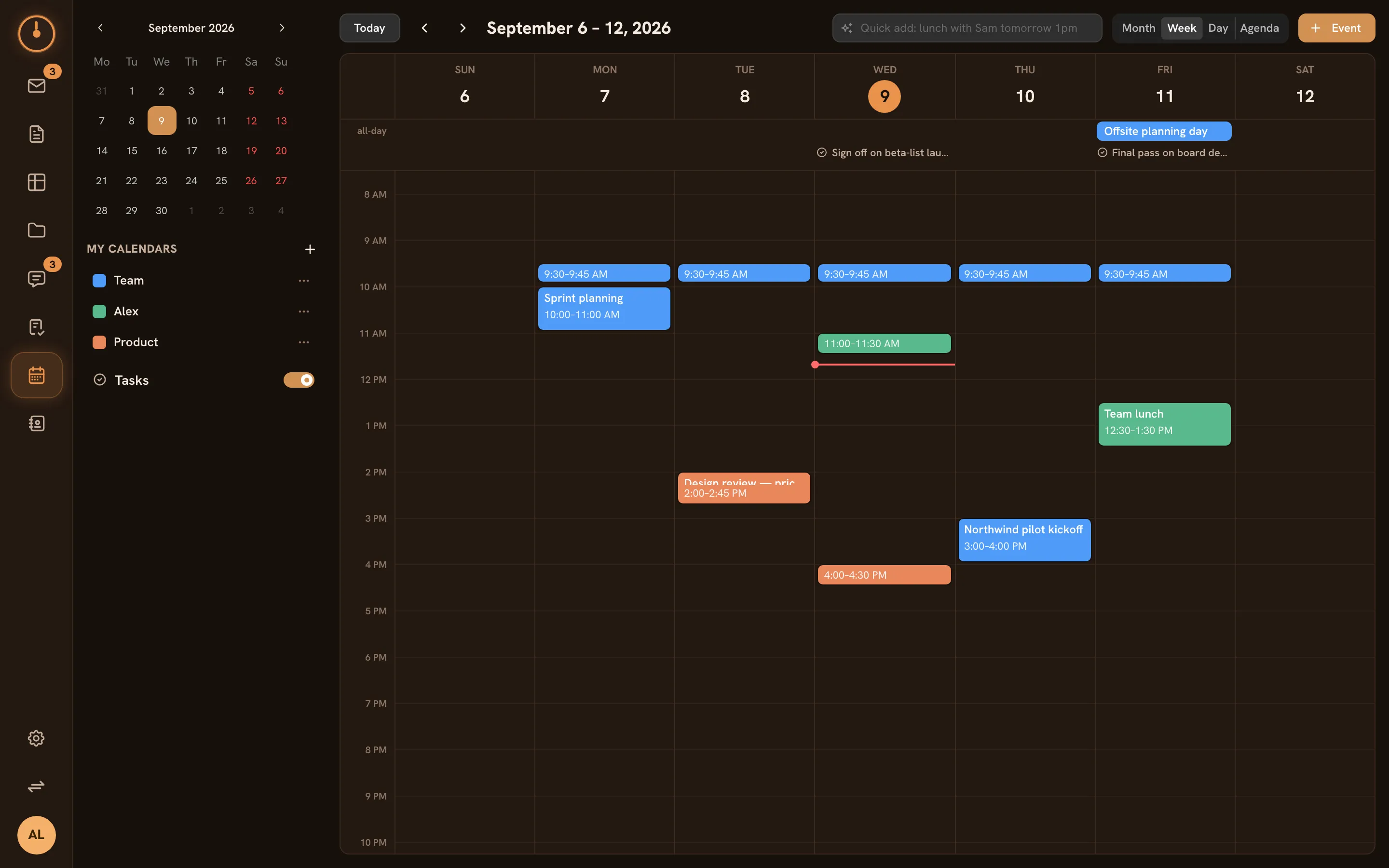
Calendar is where your workspace’s time lives. Open Calendar in the left rail to see your schedule across as many calendars as you need, create events in a couple of keystrokes, and overlay your dated tasks on the same grid.
Get around
Section titled “Get around”- Switch between Month, Week, Day, and Agenda with the control in the header. Agenda is a scrolling list of the next 30 days — handy when you just want “what’s coming up.”
- Today jumps back to now; the ‹ and › arrows step one month, week, or day at a time.
- The mini-month in the sidebar jumps straight to any date.
Create events fast
Section titled “Create events fast”The quickest way onto the calendar is the Quick add box in the header:
- Type a plain-English phrase — lunch with Sam tomorrow 1pm — and press Enter.
- Knobs parses it into an event draft: title, time, location, even a repeat rule if you said “every Tuesday.”
- Review the draft in the event editor, adjust anything, and Save. Nothing is created until you save.
You can also click Event, or click and drag directly on the grid — see Events & recurrence for the editor in full.
Your calendars
Section titled “Your calendars”Everyone starts with a personal calendar, and you can keep as many as you like — one per project, team, or context:
- Click + next to My calendars in the sidebar to create one, with its own name and color.
- Click a calendar’s color swatch to show or hide it on the grid.
- The ⋯ menu on each calendar offers Share…, Rename / color…, and Delete (your default calendar can’t be deleted).
Calendars are private by default. Share… grants view or edit access to people or groups, plus a calendar-only level — free/busy — where others see when you’re booked but not what the events are. Details in Sharing & access.
Tasks on your calendar
Section titled “Tasks on your calendar”Flip the Tasks switch in the sidebar to overlay tasks that carry a due or do date. They render as read-only chips on the grid; clicking one opens it in Tasks. See Tasks from anywhere.
Find events
Section titled “Find events”Events show up in global search alongside everything else — open search and use the Calendar type filter to narrow to events. See Search.
Going deeper
Section titled “Going deeper”- Events & recurrence — the event editor, repeating events, and editing series.
- Invitations & RSVPs — inviting people and tracking responses.
- The Calendar API — everything here, scriptable.